Forgot Password By Email Page Code In Asp.Net

This Example explains how to Create Forgot Password By Email Page Code In Asp.Net Using C# And VB.NET.

I have placed one textbox and button on the ForgotPassword.aspx page to send mail to email id stored in database.

You can also send Reset Password Link instead of sending Username password in the email.


Forgot Password By Email Page In Asp.Net


HTML SOURCE OF FORGOT PASSWORD PAGE


     <form id="Form1" runat="server">
     <div>
     <fieldset>
     <legend>Forgot Password</legend> 
     <asp:Label ID="lblEmail" runat="server" Text="Email Address: "/>
     <asp:TextBox ID="txtEmail" runat="server"/>
      
     <asp:RequiredFieldValidator ID="RV1" runat="server" 
                                 ControlToValidate="txtEmail" 
                                ErrorMessage="Please Enter EmailID" 
                                SetFocusOnError="True">*
    </asp:RequiredFieldValidator>
     
    <asp:Button ID="btnPass" runat="server" Text="Submit" 
                             onclick="btnPass_Click"/>
     
    <asp:ValidationSummary ID="ValidationSummary1" 
                           runat="server" CssClass="error"/>
                           
    <asp:Label ID="lblMessage" runat="server" Text=""/>
    </fieldset>
    </div>
    </form>


Write following code in Click Event of Button to retrieve username and password associated with EmailID provided by user from database and send the information to this email id.

C# CODE


using System;
using System.Data.SqlClient;
using System.Configuration;
using System.Data;
using System.Net.Mail;
protected void btnPass_Click(object sender, EventArgs e)
    {
        //Create Connection String And SQL Statement
        string strConnection = ConfigurationManager.ConnectionStrings["ConnectionString"].ConnectionString;
        string strSelect = "SELECT UserName,Password FROM Users WHERE Email = @Email";
        SqlConnection connection = new SqlConnection(strConnection);
        SqlCommand command = new SqlCommand();
        command.Connection = connection;
        command.CommandType = CommandType.Text;
        command.CommandText = strSelect;
        SqlParameter email = new SqlParameter("@Email", SqlDbType.VarChar, 50);
        email.Value = txtEmail.Text.Trim().ToString();
        command.Parameters.Add(email);
        //Create Dataset to store results and DataAdapter to fill Dataset
        DataSet dsPwd = new DataSet();
        SqlDataAdapter dAdapter = new SqlDataAdapter(command);
        connection.Open();
        dAdapter.Fill(dsPwd);
        connection.Close();
        if(dsPwd.Tables[0].Rows.Count > 0 )
        {
            MailMessage loginInfo = new MailMessage();
            loginInfo.To.Add(txtEmail.Text.ToString());
            loginInfo.From = new MailAddress("YourID@gmail.com");
            loginInfo.Subject = "Forgot Password Information";
            loginInfo.Body = "Username: " + dsPwd.Tables[0].Rows[0]["UserName"] + "<br><br>Password: " + dsPwd.Tables[0].Rows[0]["Password"] + "<br><br>";
            loginInfo.IsBodyHtml = true;
            SmtpClient smtp = new SmtpClient();
            smtp.Host = "smtp.gmail.com";
            smtp.Port = 587;
            smtp.EnableSsl = true;
            smtp.Credentials = new System.Net.NetworkCredential("YourGmailID@gmail.com", "YourGmailPassword");
            smtp.Send(loginInfo);
            lblMessage.Text = "Password is sent to you email id,you can now <a href="Login.aspx">Login</a>";
        }
        else
        {
            lblMessage.Text = "Email Address Not Registered";
        }

    }

VB.NET
Imports System.Data.SqlClient
Imports System.Configuration
Imports System.Data
Imports System.Net.Mail
Protected Sub btnPass_Click(sender As Object, e As EventArgs)
  'Create Connection String And SQL Statement
  Dim strConnection As String = ConfigurationManager.ConnectionStrings("ConnectionString").ConnectionString
  Dim strSelect As String = "SELECT UserName,Password FROM Users WHERE Email = @Email"
  Dim connection As New SqlConnection(strConnection)
  Dim command As New SqlCommand()
  command.Connection = connection
  command.CommandType = CommandType.Text
  command.CommandText = strSelect

  Dim email As New SqlParameter("@Email", SqlDbType.VarChar, 50)
  email.Value = txtEmail.Text.Trim().ToString()
  command.Parameters.Add(email)
  'Create Dataset to store results and DataAdapter to fill Dataset
  Dim dsPwd As New DataSet()
  Dim dAdapter As New SqlDataAdapter(command)
  connection.Open()
  dAdapter.Fill(dsPwd)
  connection.Close()
  If dsPwd.Tables(0).Rows.Count > 0 Then
   Dim loginInfo As New MailMessage()
   loginInfo.[To].Add(txtEmail.Text.ToString())
   loginInfo.From = New MailAddress("YourID@gmail.com")
   loginInfo.Subject = "Forgot Password Information"
   loginInfo.Body = "Username: " & Convert.ToString(dsPwd.Tables(0).Rows(0)("UserName")) & "<br><br>Password: " & Convert.ToString(dsPwd.Tables(0).Rows(0)("Password")) & "<br><br>"
   loginInfo.IsBodyHtml = True
   Dim smtp As New SmtpClient()
   smtp.Host = "smtp.gmail.com"
   smtp.Port = 587
   smtp.EnableSsl = True
   smtp.Credentials = New System.Net.NetworkCredential("YourGmailID@gmail.com", "YourGmailPassword")
   smtp.Send(loginInfo)
   lblMessage.Text = "Password is sent to you email id,you can now <a href="Login.aspx">Login</a>"
  Else
   lblMessage.Text = "Email Address Not Registered"
  End If
End Sub


>>>Download Sample Code<<<

Read more...

Import Gmail Contacts In Asp.Net

Import Gmail Contacts In Asp.Net
Import Gmail Contacts In Asp.Net 2.0,3.5,4.0 Using Google Data API C# And VB.NET. Several times we need to create web applications which require to import or fetch Gmail Contacts or address book. This example will explain how to fetch or import Gmail contacts in Asp.net web applications.

For Importing Gmail Contacts in asp.net application we need to download Google Data API and install on system to get the desired dlls.

Create a new website and visual studio and put these 3 dlls in BIN folder of application from the location google data API has been installed on ur system.

1. Google.GData.Client
2. Google.GData.Contacts
3. Google.GData.Extensions


Add references to these dlls in your application by right clicking on solution explorer and select add reference.

Add two text box and one list box on aspx page and design it to look better.

Add one button to the page for importing the Gmail contacts or address book in Click Event.


HTML Markup Of Page


<form id="form1" runat="server">
    <div>
    
        <b>Email Address : </b>
        <br />
        <asp:TextBox ID="txtEmail" runat="server">
        </asp:TextBox>
        <br />
        <br />
        <b>Password : </b>
        <br />
        <asp:TextBox ID="txtPassword" runat="server" 
                     TabIndex="1" TextMode="Password">
        </asp:TextBox>
        <br />
        <br />
        <asp:Button ID="btnContacts" runat="server"  
                    onclick="btnContacts_Click" 
                    TabIndex="2" Text="Import Contacts" 
                    Width="125px" />
        <br />
        <br />
        <br />
        <b>Contacts:<br />
        </b>
        <asp:ListBox ID="lstContacts" runat="server" 
                     Height="176px" 
                     Width="229px">
        </asp:ListBox>
        <br />
        <br />
    
    </div>
    </form>
__________________________________________________________________________________
Go to code behind of aspx page and add directives mentioned below

using Google.Contacts;
using Google.GData.Client;
using Google.GData.Contacts;
using Google.GData.Extensions;

Now in design view of page double click on button to generate Click event and write below mentioned code in click event of button to fetch or import gmail contacts in list box
__________________________________________________________________________________
C# Code Behind
protected void btnContacts_Click(object sender, EventArgs e)
    {
        //Provide Login Information
        RequestSettings rsLoginInfo = new RequestSettings("", txtEmail.Text, txtPassword.Text);
        rsLoginInfo.AutoPaging = true;
        // Fetch contacts and dislay them in ListBox
        ContactsRequest cRequest = new ContactsRequest(rsLoginInfo);
        Feed <contact> feedContacts = cRequest.GetContacts();
        foreach (Contact gmailAddresses in feedContacts.Entries)
        {
            Console.WriteLine("\t" + gmailAddresses.Title);
            lstContacts.Items.Add(gmailAddresses.Title);
            foreach (EMail emailId in gmailAddresses.Emails)
            {
                Console.WriteLine("\t" + emailId.Address);
                lstContacts.Items.Add(" " + emailId.Address);
            }
        }
    }
__________________________________________________________________________________
VB.NET Code Behind
Protected Sub btnContacts_Click(sender As Object, e As EventArgs)
 'Provide Login Information
 Dim rsLoginInfo As New RequestSettings("", txtEmail.Text, txtPassword.Text)
 rsLoginInfo.AutoPaging = True
 ' Fetch contacts and dislay them in ListBox
 Dim cRequest As New ContactsRequest(rsLoginInfo)
 Dim feedContacts As Feed(Of Contact) = cRequest.GetContacts()
 For Each gmailAddresses As Contact In feedContacts.Entries
  Console.WriteLine(vbTab + gmailAddresses.Title)
  lstContacts.Items.Add(gmailAddresses.Title)
  For Each emailId As EMail In gmailAddresses.Emails
   Console.WriteLine(vbTab + emailId.Address)
   lstContacts.Items.Add(" " + emailId.Address)
  Next
 Next
End Sub

Now this should show contacts in list box

Hope this helps


Download sample code attached

Read more...

AsyncFileUpload Example In Asp.Net For Asynchronous Uploads

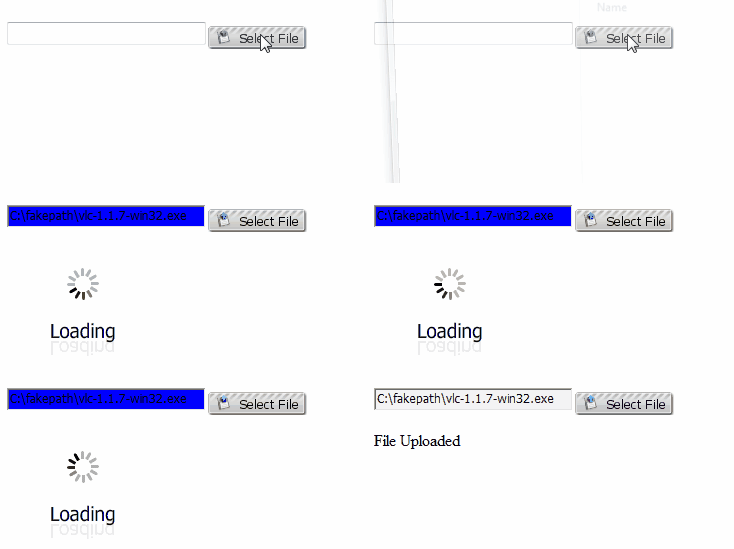
This example illustrate how to use Ajax AsycFileUpload Control In Asp.Net to upload files asynchronously with use of AjaxControlToolkit OnClientUploadComplete, OnUploadedComplete and OnClientUploadError events.

Download Latest AjaxControlToolkit and put it in Bin folder of your application. register it in html source of page using Register Assembly page directive at the top of page.

Drag and place ToolkitScriptManager, AsyncFileUpload Control  and one label from toolbox on page.label will be used to display success or failure message based on OnClientUploadComplete and OnClientUploadError event raised.

We also need to reset default file size limit of 4mb to enable large file uploads.

AsyncFileUpload example in asp.net ajax

HTML SOURCE OF PAGE

Register Toolkit
     <%@ Page Language="C#" AutoEventWireup="true"  
              CodeFile="Default.aspx.cs" Inherits="_Default" %>
     <%@ Register Assembly="AjaxControlToolkit" 
                  Namespace="AjaxControlToolkit" 
                  TagPrefix="ajax" %>
 
______________________________________________________________________________ 

     <head runat="server">
         <title></title>
     <script type = "text/javascript">
     function Success() 
     {
     document.getElementById("lblMessage").innerHTML = "File Uploaded";
     }
      
     function Error() 
     {
     document.getElementById("lblMessage").innerHTML = "Upload failed.";
     }
    </script>
    </head>
    <body>
    <form id="form1" runat="server">
    <div>
    <ajax:ToolkitScriptManager ID="ToolkitScriptManager1" 
                               runat="server"/>
     
    <ajax:AsyncFileUpload ID="AsyncFileUpload1" runat="server" 
                          OnUploadedComplete="SaveUploadedFile" 
                          OnClientUploadComplete="Success" 
                          UploaderStyle="Modern" 
                          OnClientUploadError="Error" 
                          ThrobberID="loader"/>
    <asp:Image ID="loader" runat="server" 
               ImageUrl ="~/Loader.gif"/>
     <asp:Label ID="lblMessage" runat="server" Text=""/>
    </form>
    </body>

C# CODE


protected void SaveUploadedFile(object sender, EventArgs e)
    {
        string uploadedFileName = Path.GetFileName(AsyncFileUpload1.FileName);
        AsyncFileUpload1.SaveAs(Server.MapPath("~/") + uploadedFileName);
    }

VB.NET
Protected Sub SaveUploadedFile(sender As Object, e As EventArgs)
 Dim uploadedFileName As String = Path.GetFileName(AsyncFileUpload1.FileName)
 AsyncFileUpload1.SaveAs(Server.MapPath("~/") & uploadedFileName)
End Sub


>>> Download Sample Code Here <<<

Read more...
Related Posts Plugin for WordPress, Blogger...

Engineering material

GTU IDP/ UDP PROJECT

GTU IDP/ UDP PROJECT

Patel free software download

  © Blogger templates The Professional Template by Ourblogtemplates.com 2008

Back to TOP